





Waypoints, journeys and teams
Waypoints, tracking, beams, death points, journeys, saved routes, pings and team marks in Orbital Atlas.
Use waypoints for places you want to return to, journeys for the trips you have made, and pings and team marks to show a spot to your team.
Create a waypoint#
On the world map, middle-click explored terrain, or right-click and choose Add waypoint here, or choose Add waypoint and then left-click the spot. The Add waypoint at your feet key (no key by default) opens the editor at your position. You can also type:
/atlas waypoint add <x> <y> <z> [name]The editor has:
| Control | Purpose |
|---|---|
| Waypoint name | Required, up to 64 characters. |
| Icon | Picked from the name as you type (for example "farm" picks the farm icon), or chosen from the grid. Ctrl + Z goes back to the automatic icon. |
| Colour | One of twelve colours, or Auto: by icon. |
| X, Y, Z | Where it is. Use mine fills in your current position. |
| World map | The main switch: off hides the waypoint everywhere. |
| Minimap, In world | Show it on the minimap, and as a marker in the game view. |
| Home | Make it the Home of this world and dimension. Choosing another Home replaces it. |
| Always tracked | Keep it tracked. Several waypoints can be tracked at once. |
| Beam | A beam of light over the tracked waypoint in the game view. |
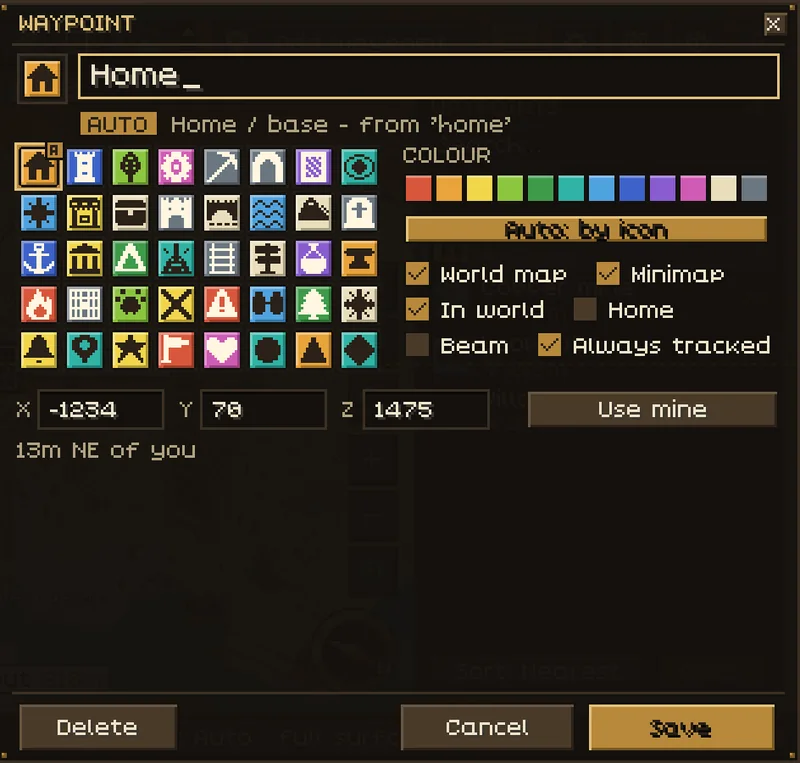
Press Save (or Enter). Middle-click the marker later to edit it, or use its right-click menu. Deleting asks for a second press.
Each world or server, and each dimension, has its own waypoints: up to 256 per dimension. Death points have their own limit.
Find, organise and track#
Open Waypoints, or press / on the map to search. The list filters by All, Nearby and Hidden, sorts by nearest, name or most recent, and has an eye button to hide a waypoint on every map. Waypoint sets group waypoints; hiding a set keeps its waypoints hidden even when they are tracked.
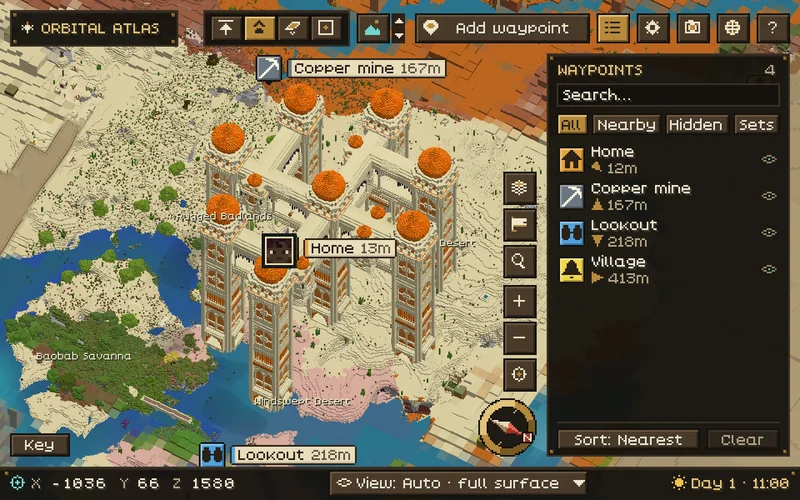
Press ; during play to track the waypoint you are looking at, or the nearest one; press it again to stop. The editor and the right-click menu also have Track and Untrack. A tracked waypoint keeps a marker in the game view at any distance, with an arrow at the screen edge when it is behind you, and on the round minimap an arrow on the rim when it is off the map. Tracking is saved with the waypoint.
Beams reach the sky. A tracked waypoint with Beam on gets a beam like a beacon's, which rises into the sky from any distance and fades near the top. In-world icon opacity (Waypoints group) fades icons and beams near your crosshair so they never hide what you look at.
Death points mark where you died, with a gravestone and how long ago it was. The newest three are kept by default (Off, 1, 3 or 10 in Settings), separate from the 256-waypoint limit.
Import, share and teleport#
Import waypoints in the settings drawer, or /atlas import, reads the waypoint files of Xaero's Minimap and JourneyMap in your instance folder. You see a preview first, nothing changes until you press Import, and Undo takes it back. The other mods' files are never changed.
Share sends a waypoint to chat when Chat coordinate links is on; coordinates in chat get an [add to Atlas] link. Sharing is always something you choose to do. Teleport is offered only to operators, where the server allows it; it does not give you permission to teleport.
Waystones. With the Waystones mod, the waystones you have activated appear as waypoints. They belong to the world they were found in and never carry over into another world.
Explorer trail and roads#
The Explorer trail records where you go and is on by default. The recent tail is an ink line with direction arrows, and the world map shows your current trip. Walking, riding a living mount or swimming the same way again and again wears roads into the map. Travel by boat, rail, flight or on a moving build is drawn as travel and does not wear roads. With Roads: Fade (the default), roads fade after 30 days without use.
Keep history decides how long the trip log is kept: a day, a week (the default) or 30 days. Saved routes are kept separately. Clear my trail removes this world's recorded path, trips and roads, and keeps saved routes.
Journeys and saved routes#
Open Journeys on the world map. A new trip starts after a break of more than five minutes, a login or a portal. Choose a trip to see its path and details.
| Action | Result |
|---|---|
| Replay | Plays the trip with a moving marker. Drag the scrubber to pick a moment; Space pauses and resumes. |
| Guide back | Follows the recorded path back to the trip's start, or to the replay's current point. |
| Save | Keeps the trip as a named route. |
| Stop | Ends the replay or guidance. |
The Routes tab lists saved routes: guide along them, rename or delete them, and show or hide them. Saved routes are drawn as a double line on both maps. Guidance follows the recorded route; it does not plan a new path or move your character.
Routes can be shared in chat, with your team or with one player, and exported as GPX or JSON (/atlas route export). A player who receives a shared route adds it with its [Add route] link. Publishing a route to your team needs a server with the server add-on.
Pause recording and privacy zones#
Bind Pause/resume trail recording in Controls to stop and restart recording; the minimap shows Trail paused while it is paused.
To keep a place out of your trail, right-click a waypoint and choose Trail privacy zone on/off, then set Privacy zones to 32, 64 or 128 blocks in Settings. Not recording here shows while you are inside one.
Pings, team marks and pins#
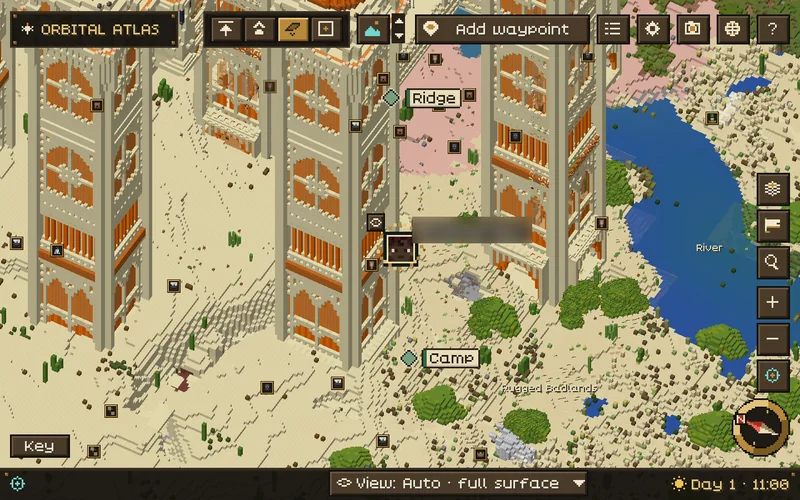
Right-click the map and choose Ping here, Team mark here or Pin here. The Ping (team) and Team mark keys (no key by default) mark the spot you look at, or your feet. /atlas ping, /atlas mark [label] and /atlas pin [label] do the same.
| Marker | Use |
|---|---|
| Ping | A short call for attention. |
| Team mark | A longer-lived shared spot, with an optional label. |
| Pin | A personal marker that stays on your own map. |
With the server add-on, pings and marks reach your teammates, and far teammates stay on your maps even when their game is too far away for yours to see them. Without it, a ping stays on your own map unless you turn on Pings by team chat (off by default) and are in a team. A message tells you when a ping is visible only to you.
Right-click one of your own marks to change its label or remove it. You cannot remove another player's mark. Share my roads is a separate choice, off by default; recording your own trail never shares it.
See Privacy and reports for what sharing sends, and Server setup for the add-on.