





Settings
Every Orbital Atlas setting in the settings drawer, with its default and what it does, for 1.0.0-beta.1.
Open the world map with M, then choose Settings or press T. The Mods list's Config button opens the same settings.
The drawer slides in from the right edge of the world map, so you see every change on the map at once. The icon tabs on its left edge pick a group, and the search field at the top finds settings in every group by name or description.
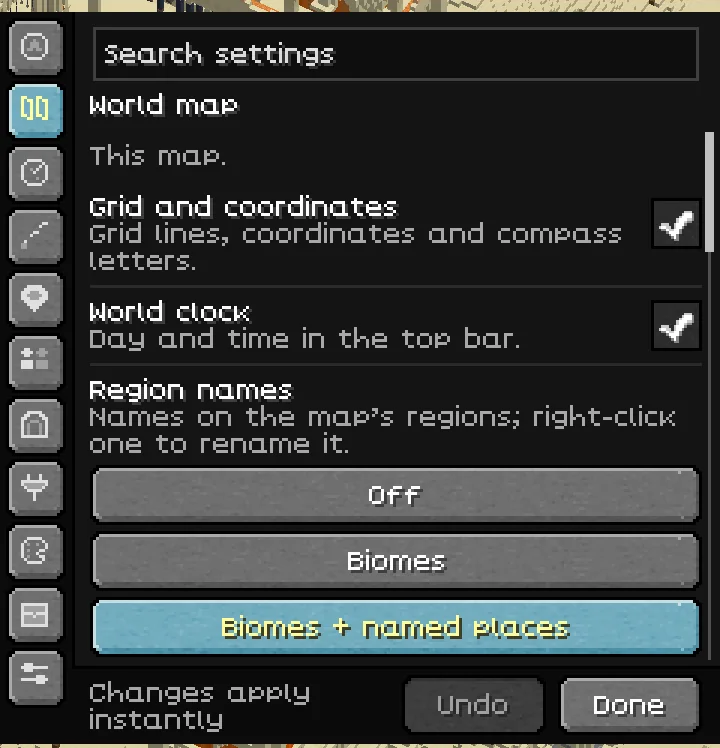
Changes apply and save immediately, except Terrain detail shading, which needs a restart, and Block texture storage, which applies the next time a map opens. Undo steps back through the changes made while the drawer is open. Done or Esc closes the drawer and ends that undo history. Actions that delete something ask first. The defaults below are those of a fresh installation of 1.0.0-beta.1; choices you saved in an earlier build are kept.
Server fair-play rules can turn off the minimap, cave views, radar classes, Seek, Show all underground, teleport and Create train overlays. A local setting cannot override a server rule. Tools that use a world's data appear after you join a world. Integration rows appear only when their mod is installed.
Minimap#
| Setting | Default | What it does |
|---|---|---|
| Show minimap | On | Shows the corner minimap. The Toggle 3D minimap key (no key by default) changes the same setting. |
| Position | Top right | Chooses Top left, Top right, Bottom left or Bottom right. |
| Size | 512 px | Sets the map's physical pixel size, from 192 to 1024 px in steps of 16. Its displayed size also fits the game window. |
| Zoom | Auto | Auto learns zoom levels for activities such as walking, riding, flying and caves. Manual uses one saved level. |
| Manual zoom | 160 blocks | Sets the span used in Manual mode, from 32 to 512 blocks in steps of 16. A smaller span shows a closer view. |
| Orientation | Facing up | North up keeps north at the top; Facing up turns with you; Fixed uses Fixed angle. |
| Fixed angle | 45° | Rotation used with Fixed orientation, adjustable from −180° to 180° in 5° steps. |
| Tilt | 55° | Sets the downward viewing angle from 25° to 85°. Higher values look more directly down. |
| Info plaque | Coords | Off, Coords, + Biome or + Time. The last option shows coordinates, biome and time. |
| Compass heading | On | Shows your heading in degrees and compass points. |
| Heading shows | Both | Chooses Both, Degrees or Compass. Requires Compass heading. |
| While flying | Balanced | When travel outruns loaded terrain, Far keeps the requested span, Loaded frames loaded and drawn ground, and Balanced lies between them. Saved terrain keeps the requested span. |
| Shadow | On | Adds a soft shadow beneath the minimap. |
| Minimap refresh | Normal | Refreshes animated water and lava when the view is otherwise unchanged: Still every 1000 ms, Normal every 250 ms or Live every 50 ms. |
| Minimap edge | Strata | Styles the round map's cut side: Strata, Ink, Mirror or Off. |
Hold the map key to use Quick Tune: scroll to change zoom, or Shift + scroll to change tilt. Release the key to keep the changes; Esc cancels them. See Minimap.
World map#
| Setting | Default | What it does |
|---|---|---|
| Grid and coordinates | On | Shows grid lines, coordinates and compass letters. |
| World clock | On | Shows the in-game day and time in the top bar. |
| Region names | Biomes + named places | Off hides labels; Biomes labels biome areas; Biomes + named places adds generated names for notable places. Right-click a region label to name it yourself. |
| Label style | Classic | How region names look: Classic, Chart (biomes lettered onto the land, named places on plaques), Plaques or Ink. |
| Illustrated chart | On | Draws the illustrated chart over unexplored ground. |
| Animated frontier | On | Animates newly mapped land as it appears. |
| Chunk and region borders | Off | Draws chunk and 512-block region lines on both maps. |
| Border lines | Both | Chooses Both, Chunks or Regions when borders are enabled. |
| Spawn lighting | Off | Shows nearby locations where mobs could spawn. |
| Day, night and weather | On | Lights terrain by the world's time and weather while keeping nights readable. |
| Terrain detail shading | On | Adds sun and contact shading. Restart Minecraft after changing it. Older saved areas update as you revisit them. |
| Height shadows | On | Adds shadows on known ground beneath bridges, overhangs and other raised terrain, on both maps. |
| Update speed | Normal | Low, Normal, High or Max. Higher values allow more map work per frame and can fill the map faster at an FPS cost. |
| Edit replay | Normal | Controls how quickly distant block changes reach the map: Slow, Normal or Fast. Slower can help near large farms. |
| Map image export | On | Lets you save the map as a PNG. |
| Export map image | Action | Saves the current view as a PNG of 512, 1024 or 2048 px in screenshots/atlas/. Needs Map image export and a loaded world. |
Radar#
Radar settings affect players and mobs on the maps. The server controls which radar categories are allowed.
| Setting | Default | What it does |
|---|---|---|
| Players | On | Shows other players available to the client. |
| Hostile mobs | On | Shows hostile mobs, including bosses. |
| Passive mobs | On | Shows peaceful mobs and animals. |
| Your pets | On | Shows tamed animals, including pets belonging to other players. |
| Player names | On | Adds name slips beside player markers. |
| Style | Tags | Chooses Tags, Medallions or Dots for radar markers. |
| Size | Medium | Chooses Small, Medium or Large markers. |
| Minimap shows | All | All includes all enabled categories. Threats removes passive mobs from the minimap. Minimal keeps only players, bosses and pets, plus hostile mobs within 16 blocks, on both maps. |
| Faces within | 32 blocks | Chooses 8, 16 or 32 blocks for nearby mob faces on the minimap. Crowded faces become dots so the map stays legible. |
| Heads | Floating | Chooses heads Floating above the terrain or Printed on it. |
| Stack crowds | On | Groups crowded world-map markers into a single mark with a count. The minimap uses dots and nearby faces. |
| Boss glow | On | Adds a pulse and glow to boss markers. |
| Height range | ±32 | Shows mobs within ±16, ±32, ±64 or ±128 blocks of your height. |
Trails & routes#
| Setting | Default | What it does |
|---|---|---|
| Explorer trail | + Roads | Off stops the trail; Recent draws the recent tail; + Roads adds paths you use often; All draws the trail throughout the selected window. |
| Ink | Iron-gall | Chooses Iron-gall, Sepia, Vermilion or Indigo for your route and roads. |
| Style | Inked | Chooses the Inked trail or older Classic lines. |
| Recent tail | 10 | Keeps the solid recent tail for 2, 5, 10 or 30 minutes. |
| On the world map | Session | Chooses a visible trail window of 10 min, Hour, Session or All. This controls drawing, separately from retention. |
| Roads | Fade | Off stops road drawing and recording; Fade fades roads unused for 30 days; Keep retains their appearance. |
| Keep history | 7 days | Keeps the trip log for 1 day, 7 days or 30 days. Expired history is removed from disk. |
| Privacy zones | None | Stops new trail recording within 32, 64 or 128 blocks of waypoints marked private. None disables the zones. Select the private waypoints from their map menu. |
| Pause trail | Unbound | Assigns the key that pauses or resumes recording. |
| Clear my trail | Action | Clears your trail in the current world after confirmation. Requires a loaded world and an enabled trail. |
Trail recording, visible history, roads and explicit route sharing have separate controls. See Waypoints, journeys and teams.
Waypoints#
| Setting | Default | What it does |
|---|---|---|
| In-world markers | On | Shows waypoint badges, distances, tracking pointers and beams in the game view. |
| In-world icon opacity | 55% | How solid waypoint, ping and team-mark icons and beams are near your crosshair, from 20% to 100% in 5% steps. Away from the crosshair they stay solid, and names stay readable. |
| Track nearest waypoint | ; | Assigns the tracking key. It tracks the waypoint near your crosshair, or the nearest one; pressing it again stops tracking. In Controls it is Track waypoint (looked-at or nearest). |
| Death points | 3 | Keeps Off, 1, 3 or 10 death markers. Off records none. |
| Waypoint sets | On | Enables named waypoint groups that can be shown or hidden. |
| Manage sets | Action | Creates, renames, shows or hides sets. Requires Waypoint sets and a loaded world. |
| Measuring tool | On | Enables route distances and estimated travel times. |
| Measure a route | Action | Starts measuring: click map points; right-click removes the last point. Requires the Measuring tool and a loaded world. |
| Distance | Flat | Chooses Along terrain or Flat for measurement. This choice lasts for the session. Requires the Measuring tool and a loaded world. |
| Chat coordinate links | On | Adds coordinate actions such as [add to Atlas] and sharing to recognised coordinates in chat. |
| Teleport to waypoint | On | Offers waypoint teleport where the server and your permissions allow it; intended for operators. |
| Waypoint imports | On | Enables imports from Xaero's and JourneyMap, including /atlas import. |
| Import waypoints | Action | Opens the importer with an Undo option. Requires Waypoint imports and a loaded world. |
Team#
| Setting | Default | What it does |
|---|---|---|
| Show teammates | On | Adds teammate tracking, including edge arrows when teammates are far away. |
| Player tags size | 50% | Scales player heads and names in the game view from 25% to 150%, in 5% steps. Map icons and waypoints keep their size. |
| Ping and mark size | 100% | Scales compact team pings and marks, including text, from 50% to 150%, in 5% steps. They also shrink with distance. |
| Teammate tails | 2 min | Chooses Off, 30 s, 2 min or 10 min for lines behind teammates. |
| Pings and marks | On | Enables pings, marks and pins from keys, commands and the map menu. |
| Ping | Unbound | Assigns a key to ping the spot under your crosshair. |
| Team mark | Unbound | Assigns a key to mark the spot under your crosshair for your team. |
| Ping sound | On | Plays a short tone for pings; your own plays quieter. Uses Minecraft's Players volume. |
| Pings by team chat | Off | Allows team-chat delivery when the server add-on is unavailable. |
| Share my roads | Off | Contributes roads you wear to your team's roads. |
| Share routes in chat | On | Enables sending a saved route as chat lines when you choose to share it. |
| Open shared routes | On | Offers [Add route] on routes shared with you. |
| Use the server add-on | On | Uses the add-on for team pings and routes when the server provides it. |
Caves & rooms#
| Setting | Default | What it does |
|---|---|---|
| Interior view | Automatic | Automatic cuts into the cave, canopy or room you are in; Surface keeps the surface; Manual uses the floor set below. In the Nether, Automatic shows the full height in the open and the cut layer in tunnels and buildings. See World map and views. |
| Toggle interior view | O | The interior view key, in play and on the world map. Tap it to step Automatic, Surface and Floor (in the Nether: Auto, Full height, Layer and Floor), or to go back to Auto after choosing a level. Hold it and scroll to change the view level. |
| Cut away the roof | On | Cuts the roof away to show the room you are in. |
| Zoom to fit the room | On | Fits the minimap to the room while Zoom is Auto. |
| Center on the room | On | Frames the room rather than centering directly on you. |
| Smooth room motion | On | Eases zoom changes when entering or leaving a room. |
| Manual floor | Y 64 | Chooses the floor used by Manual interior view. The slider follows the dimension's build height. |
| Level height | 4 blocks | Shows 2 to 32 blocks above the manual floor. |
| Show all underground | Off | Off: ores under the surface are drawn as the rock around them, and the cave view shows only the caves you have explored. On: every underground block and cave shows as it is, where server rules allow it. |
| Interior walls | Short wall stubs | Chooses Short wall stubs or Full room height in Interior view. |
| Cave view | Floors | Floors shades the floors below you darker with depth; Rock shows caves cut into warm grey rock; Chart uses hatched sepia rock. |
| Cave view walls | On | Closes exposed sides of cave and Interior views with plain rock walls. |
See World map and views for recorded floors, storeys, cave styles and Nether layers.
Other mods#
Integration rows appear only when the corresponding mod is installed. The claim style and border width appear with either supported claim mod. See Integrations and claims.
| Setting | Default | What it does |
|---|---|---|
| Waystones | On | Shows the waystones you have activated as waypoints, for the world you are in. |
| Create trains and stations | On | Shows Create train lines, stations and trains on the world map. |
| FTB Chunks claims | On | Draws FTB Chunks claimed land with team colours and names. |
| Open Parties claims | On | Draws claims from Open Parties and Claims. |
| Claim style | Border | Chooses Border, Frontier, Banner or Hatched, with a border and name for each claimed area. |
| Claim border width | 100% | Scales border lines on both maps from 50% to 200%, in 10% steps. Fills and names keep their appearance. |
| Maps from other mods | On | Allows markers and layers supplied by add-ons. |
| Add-on layer name | Set by the add-on | Each registered map layer gets its own visibility switch, named by its add-on. |
Look & sound#
| Setting | Default | What it does |
|---|---|---|
| Style | Full | Full adds the compass rose, minimap collar and brass ornament. Minimal removes those decorations. |
| UI sounds | On | Enables themed page turns and waypoint chimes with Full style. |
Storage#
| Setting or action | Default | What it does |
|---|---|---|
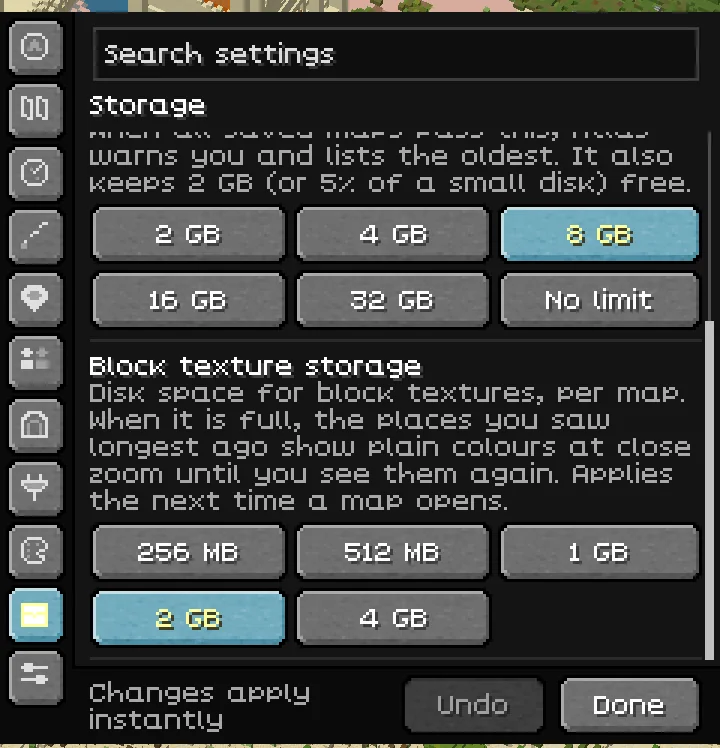
| Map storage limit | 8 GB | Chooses 2 GB, 4 GB, 8 GB, 16 GB, 32 GB or No limit for the saved maps of all your worlds. When they pass it, Atlas warns you and lists the oldest; it never deletes another world's map without asking. It also keeps 2 GB, or 5% of a small disk, free. |
| Block texture storage | 2 GB | Disk space for close-zoom block textures, per map: 256 MB, 512 MB, 1 GB, 2 GB or 4 GB. When it is full, the places you saw longest ago show plain colours at close zoom until you see them again. Applies the next time a map opens. |
| Remove oldest maps | Action | Appears during a storage warning. Lists exactly which maps would be removed and asks for confirmation. |
| Raise limit | Action | Appears during a storage warning. Raises the limit to the next step that holds your maps. |
| Dismiss for this session | Action | Appears during a storage warning. Stops further storage pop-ups until Minecraft restarts. |
Advanced#
| Setting or action | Default | What it does |
|---|---|---|
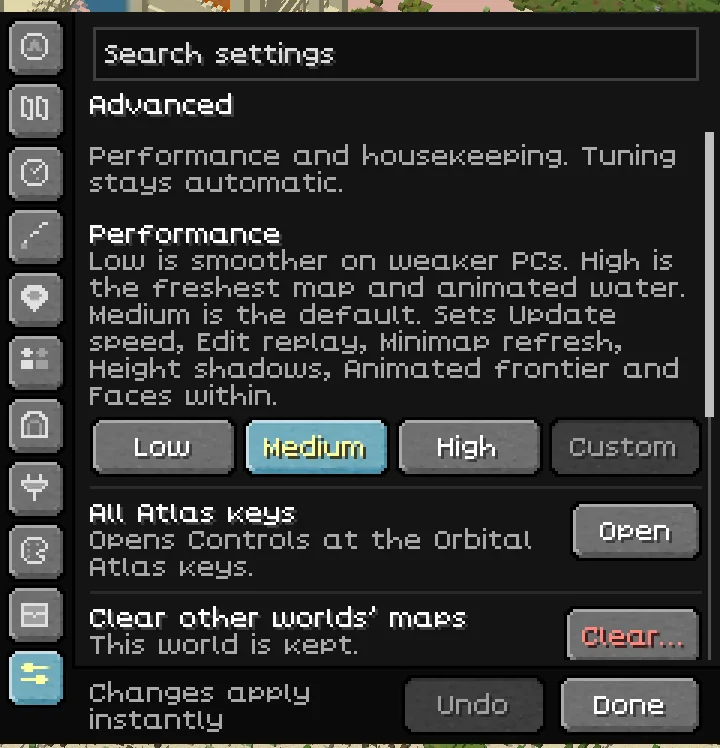
| Performance | Medium | Applies a group of six settings. Custom means your settings do not match a preset. See the table below. |
| All Atlas keys | Action | Opens Controls at the Orbital Atlas key category. |
| Clear other worlds’ maps | Action | Clears other worlds' saved maps after confirmation, while keeping the world you are in. Requires a loaded world. |
| Send an Atlas report | Action | Opens the report screen. You see every file first, and nothing is sent until you confirm. See Privacy and reports. |
| Reset all Atlas settings | Action | Restores the settings and key bindings in this drawer after confirmation. Distance keeps its session choice. Undo can restore the changes while the drawer remains open. |
| Preset | Update speed | Edit replay | Minimap refresh | Height shadows | Animated frontier | Faces within |
|---|---|---|---|---|---|---|
| Low | Low | Slow | Still | Off | Off | 8 |
| Medium | Normal | Normal | Normal | On | On | 32 blocks |
| High | High | Fast | Live | On | On | 32 blocks |
Saved preferences#
Atlas keeps map and decoration choices in config/orbitalatlas.properties, feature switches and options in config/orbitalatlas-features.properties, and the minimap zoom in config/orbitalatlas-zoom.properties. Minecraft saves key bindings in options.txt. A file is written only once you change something, and only the settings you changed are written. Use the settings drawer rather than editing the files.