





Privacy and reports
What Orbital Atlas stores on your computer, what it sends to a server, and exactly what an Atlas report contains. Atlas sends nothing on its own.
Orbital Atlas sends nothing on its own. It collects nothing in the background, does not upload automatically, does not check for updates and has no accounts. Your map, waypoints and settings stay in your instance folder. The one thing Atlas can send over the internet is a report you start yourself: it shows you every file first and sends it only when you press Confirm and send.
This page describes Orbital Atlas itself. Your launcher, Minecraft, the other mods you use and the site you download from have their own policies.
Send an Atlas report#
A report helps us find and fix a problem you ran into. To send one:
- Type
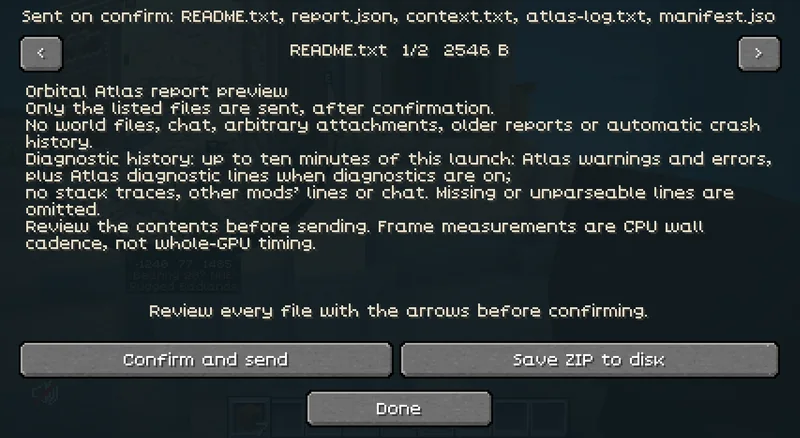
/atlas report, or open the world map, press T and choose Advanced > Send an Atlas report. - Optionally type a note of up to 1,024 characters, for example what you were doing.
- Press Prepare preview. Atlas builds the report on your computer.
- Read every file with the arrows. The screen shows the files and their total size.
- Press Confirm and send. Atlas saves a copy in
orbitalatlas/reports/and makes one HTTPS attempt with exactly those bytes.
Save ZIP to disk saves the same preview in orbitalatlas/reports/ and sends nothing. Nothing is collected before you open the report screen, and nothing is sent until you confirm. A failed or uncertain attempt is not retried, and the same preview is never sent twice. Atlas keeps the newest ten report copies.
What a report contains#
A report is a ZIP of at most 1 MiB with these files, and nothing else:
| File | Contents |
|---|---|
README.txt | What the report is and what it leaves out. |
report.json | When it was made; the Atlas build; your Minecraft, NeoForge, Java and operating system versions; CPU, graphics card and driver; memory; screen size and GUI scale; the number of mods (never their names); the Atlas settings you changed; the failsafe state without its error message; which optional graphics programs failed; the map's memory budget; whether the server runs the Atlas add-on (never its address); frame-time figures. |
context.txt | Atlas's own summary, as in a crash report, with the error detail left out. |
note.txt | Your note, if you wrote one. |
atlas-log.txt | Up to ten minutes of this launch: Atlas's own warnings and errors, plus Atlas diagnostic lines if you turned diagnostics on. No stack traces, no other mods' lines and no chat. Left out when there are no such lines. |
manifest.json | File names, sizes and checksums. |
Before the preview is shown, Atlas removes your Minecraft name and UUID, login tokens, folder paths and web addresses, your computer's user and computer name, the current server's address and name, the current world's name, IP addresses, email addresses, values that look like passwords or keys, and block, chunk and map coordinates. Read the preview before you confirm, especially your note.
A report has no install ID or other identifier, and contains no world files, waypoints, routes, trails, region names, screenshots, crash reports, older reports or other files.
Where a report goes#
Reports go over HTTPS to the Atlas report service at reports.orbitislabs.com, which runs on Cloudflare. As with any website, Cloudflare receives your IP address to handle the connection; the service uses it only to limit how many reports one address can send per minute, and does not store it. It stores the report with its size, Atlas version and country. Reports are then copied to the project's own private storage and its private issue tracker, and the copy on Cloudflare is deleted once the stored copy is verified. We use reports only to find and fix problems in Orbital Atlas.
Reports carry no account or identifier, so they cannot be matched to you automatically. To ask for a report to be deleted, contact us in Orbital's Lounge on Discord (opens in a new tab) with the approximate time you sent it. Delete your local copies in orbitalatlas/reports/ yourself.
What Atlas sends to the Minecraft server#
Automatically, only to servers that also run Orbital Atlas: a short handshake when you join, with the add-on protocol versions and team features your game supports, whether you opted in to sharing your roads, and the dimension you are in. While the server's add-on is on, Atlas also tells it when you change dimension. A server without Atlas receives no Atlas message. Like every NeoForge mod with network channels, the game's own channel list shows any server that Atlas is installed.
To stop the handshake: Settings > Team > Use the server add-on. Team features then fall back to chat or stay on your own map.
Only when you act:
| What you do | What is sent | To whom |
|---|---|---|
| Press Share on a waypoint | One chat message with its name, coordinates and dimension. | Public chat |
| Share a route | The route as chat lines, including the time you were at each point and how you travelled. | Public chat, team chat or one player, as you choose |
| Ping, team mark | The spot, its dimension and your label. | Your online teammates through the add-on; otherwise team chat only if Pings by team chat is on (off by default) |
| Publish a route to your team | The whole route, as above. | The server add-on, which stores it for your team |
| Share a region name with your team | The name, a small anchor area, the biome and the dimension. | The server add-on, which stores it for your team |
| Share my roads (off by default) | Every 10 seconds while you walk, ride or swim, the 8-block cells you stepped between; no times. | The server add-on, for your team's roads |
| Teleport to a waypoint | A /tp command. | The server; offered only to operators |
| Open the world map with Create installed | Create's own train map request. | The server (Create) |
Chat messages you receive are only read: coordinates get an [add to Atlas] link, and the restriction codes servers send for Xaero's mods and VoxelMap are obeyed. Receiving a chat line never makes Atlas send anything.
What the server add-on stores#
On a server with the add-on on, published team routes and shared roads are stored in <world>/data/orbitalatlas-team.dat, and shared region names in <world>/data/orbitalatlas-names.dat, with the author's Minecraft UUID and name where a route or name has an author. Pings and marks are kept in memory only. Far teammates' positions are sent to teammates about four times a second and never stored. See Server setup for the details.
What is stored on your computer#
Everything is in your instance folder:
| What | Where |
|---|---|
| Settings | config/orbitalatlas.properties, config/orbitalatlas-features.properties, config/orbitalatlas-zoom.properties |
| Safe mode and switches you add | config/orbitalatlas-props |
| Waypoints | orbitalatlas/waypoints/ |
| Explored areas, recorded floors, biomes, your region names | orbitalatlas/exploration/ |
| The saved map | orbitalatlas/terrain/ |
| Explorer trail | orbitalatlas/trails/, kept for your Keep history setting |
| Saved routes | orbitalatlas/routes/ |
| Map images | screenshots/atlas/, only when you export one |
| Reports | orbitalatlas/reports/, only when you send or save one |
Each world, server and dimension has its own data, in folders named by a hash. A small identity.txt in each saved-map folder holds a display label (the world's folder name or the server's name from your list), the dimension and two hashes; it never holds a server address, a world path, a seed or your user name. The label can still be a world name you chose, so check before you share a copy of the folder.
Atlas writes to the normal Minecraft log, logs/latest.log, and nowhere else. Minecraft's own logs and crash reports can contain your user name, your mods and folder paths; read them before you post them anywhere.
Files from older builds#
Closed-beta builds had optional background diagnostics with a consent choice. This version has neither: at its first launch it deletes the old diagnostic event files in orbitalatlas/beta/spool/. It never reads or writes config/orbitalatlas-telemetry.properties or the rest of orbitalatlas/beta/; you can delete them.
Deleting your data#
/atlas data lists what is stored for each world and dimension. Settings > Advanced > Clear other worlds' maps deletes the saved map, explored areas and trails of every world except the one you are in, after you confirm; waypoints and settings are kept. Clear my trail clears the current world's trail. To remove everything, close the game and delete the orbitalatlas folder and the config/orbitalatlas* files.
Explored areas are never removed automatically. Trail points older than your Keep history setting are. When saved maps pass the Map storage limit, Atlas asks before it deletes anything.
If a later version changes any of this, its changelog will say so.