





Controls and commands
Default keys, mouse controls and /atlas commands for Orbital Atlas, and how to resolve key conflicts.
Change key bindings under Options > Controls > Key Binds > Orbital Atlas, or open Settings > Advanced > All Atlas keys. These are the defaults of a fresh installation; key bindings you saved earlier are kept when you update.
In play#
| Control name | Default | Action |
|---|---|---|
| World map / Quick Tune (hold) | M | Tap to open the world map; tap again to close it. Hold and scroll to tune the minimap. |
| Toggle 3D minimap | No key | Shows or hides the minimap and saves the choice. |
| Zoom minimap in | = | One zoom step closer. In Auto zoom, the change is kept for your current activity. |
| Zoom minimap out | - | One zoom step farther out. |
| Minimap zoom: Auto/Manual | No key | Switches between Auto and Manual zoom. |
| Add waypoint at your feet | No key | Opens a new waypoint at your position. |
| Track waypoint (looked-at or nearest) | ; | Tracks the waypoint near your crosshair, or the nearest one. Press again to stop. |
| Pause/resume trail recording | No key | Pauses or resumes the explorer trail. |
| Toggle interior view | O | Tap: step Automatic, Surface and Floor, or go back to Auto after choosing a level. Hold and scroll: change the view level. Also works on the world map. |
| Interior view: one level up | No key | One view level up, without holding O. |
| Interior view: one level down | No key | One view level down. |
| Ping (team) | No key | Pings the spot you look at, or your feet. |
| Team mark | No key | Places a team mark at the spot you look at. |
| Claim mode | C | On the world map, enters or leaves claim mode when a supported claim mod is ready. |
The zoom, waypoint, tracking, trail, ping and team mark keys act only in play, never over a menu. A ping reaches teammates through the server add-on, or through team chat when Pings by team chat is on; otherwise it stays on your own map.
Quick Tune#
Hold the map key for about a quarter of a second to enlarge the live minimap. Scroll to zoom; hold Shift and scroll to tilt in 5° steps. Release the map key to keep the result. Esc, opening another screen or hiding the minimap cancels it. You can keep moving and looking around while you tune. If the minimap is hidden, the map key opens the world map.
World map: mouse#
| Input | Action |
|---|---|
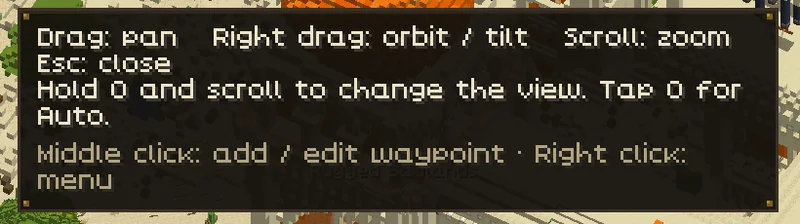
| Left drag | Pan; Recenter returns to following you. |
| Right drag | Orbit and tilt; the view switches to Free. |
| Scroll | Zoom the map; over a list, scroll the list. |
| Middle-click terrain | Add a waypoint there. |
| Middle-click a waypoint | Edit it. |
| Right-click | The menu for terrain, a waypoint, a mark or a creature. |
| Right-click a region label | Rename that region. |
| Add waypoint, then click terrain | Place a waypoint without a middle mouse button. |
| Click a waypoint cluster | Zoom in to separate its markers. |
| Click the compass rose | Back to North up (shown with the Full style). |
World map: keyboard#
| Input | Action |
|---|---|
| Esc | Close the open menu or panel, cancel placing or measuring, or leave claim mode; otherwise close the map. |
| M (the map key) | Close the map. |
| H | Show or hide the map controls. The ? button does the same. |
| T | Open the settings drawer. |
| L | Open or close the Overlays menu. |
| O (the interior view key) | Tap to change the interior view mode; hold and scroll to change the view level. |
| C (the claim mode key) | Enter or leave claim mode, where supported. |
| / | Open the waypoint list and its search field. |
| Up, Down | Select a waypoint in the list and pan to it. |
| Enter | Edit the selected waypoint, or select the first one. |
Typing in a search field takes priority over map shortcuts.
Claim mode#
| Input | Action |
|---|---|
| Left-click or drag | Select chunks to claim. |
| Right-click or drag | Select chunks to unclaim. |
| Shift + left-click or drag | Select chunks to force-load. |
| Shift + right-click or drag | Select chunks to stop force-loading. |
| Middle drag, Space + left drag or Alt + left drag | Pan the map. |
| Tab | Switch claim mod when both are available. |
| Esc | Leave claim mode. |
Release the selection to send it. The claim mod checks permissions, limits and reach. See Integrations and claims.
Settings drawer and waypoint editor#
In the settings drawer, Tab and the arrow keys move between controls, and Enter or Space presses one. Ctrl + Z is Undo while the search field is not focused (on macOS, use the Command key). To bind a key, click a key setting and press a key or mouse button; Esc while it listens clears the binding.
In the waypoint editor, Enter saves, Tab moves to the next field and Esc cancels. Ctrl + Z goes back to the automatic icon after you picked one yourself. Icon and colour grids work with the arrow keys and Enter or Space.
Key conflicts#
If another map opens when you press M, two mods share the key. Xaero's World Map, FTB Chunks and Simple Voice Chat may also use M; JourneyMap may use = and -. Give one of them another key in Controls.
About ten seconds after you join a world, Atlas names a clash with its world map key in one chat line, once per clash. It never changes your keys. It compares the key and its modifier: M and Ctrl + M are different bindings.
Commands#
All /atlas commands are handled by Atlas in your own game; the server never receives the command itself. Commands that share something, such as a ping or a published route, send only that.
| Command | Purpose |
|---|---|
/atlas | Show a short list of commands. |
/atlas waypoint add <x> <y> <z> [name] | Add a waypoint in your current dimension. |
/atlas import | Open the waypoint import from Xaero's Minimap and JourneyMap. Needs Waypoint imports. |
/atlas measure clear | Clear the current measurement. |
/atlas ping | Ping the spot you look at. /atlas ping clear removes your pings. |
/atlas mark [label] | Place a team mark. |
/atlas pin [label] | Place a personal pin. |
/atlas route list | List your saved routes. |
/atlas route share <n> chat, team or player <name> | Share saved route number n. |
/atlas route export <n> gpx or json | Export saved route number n to orbitalatlas/routes/export/. |
/atlas route publish <n> | Publish a saved route to your team (needs the server add-on). |
/atlas team | Show your team status. |
/atlas data | Show how much map data is stored for each world and dimension. |
/atlas report | Open the report screen. Nothing is sent until you confirm. See Privacy and reports. |
/atlas safemode | Show safe mode; on or off changes it from the next launch. |
/atlas reenable | Turn the map back on after it switched itself off following an error. |
For safe mode and recovery, see Troubleshooting.